Be there when a chat starts
New conversations and customer messages arrive in your connected Slack channel, with a thread for each chat.


Bring customer conversations to your team’s Slack channel. Reply in the conversation thread and let Mill deliver your answer to the customer’s chat widget.
Customer conversations · Replies from linked Mill operators.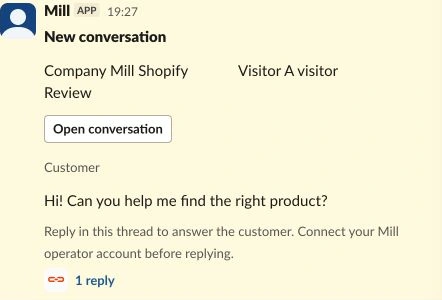
New conversations and customer messages arrive in your connected Slack channel, with a thread for each chat.
Link your Mill operator account, answer in the Slack thread and send your reply to the customer’s widget.
Mill saves the reply with its operator. Your team can open the full conversation in the shared inbox, while internal notes stay in Mill.
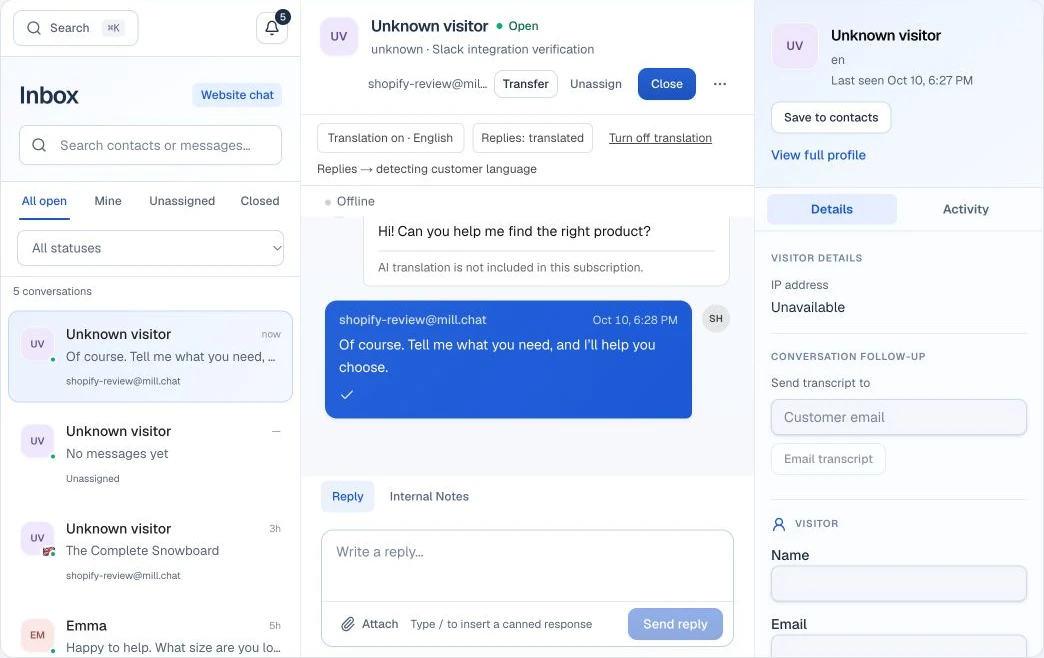
Answer a customer in their Slack conversation thread. Mill sends the message to the widget and saves it in the shared inbox with the linked operator, so your team can follow the same conversation in Mill.
Explore the shared inboxChoose your company in Mill, open Integrations and select Slack.
Select Connect Slack and approve the connection in the Slack workspace you want to use.
Select a public channel for this company’s customer conversations and approve the connection. If you already use alerts, choose Enable Slack replies in Mill to upgrade the connection.
Choose Link my Slack account in Mill. Each operator links their own Slack account once before replying in customer conversation threads.
A Mill owner or administrator sets up the connection. Your Slack workspace may require an administrator to approve the app.
Connect Slack in MillReply with text in the customer’s conversation thread in Slack. Mill sends the answer to the widget and saves it in the conversation with the linked operator.
An active Mill operator who has access to the company and has explicitly linked their own Slack account. A Mill owner or administrator sets up the company’s connection.
No. Internal notes stay in Mill. Slack conversation threads carry customer messages and operator replies.
Use a public Slack channel and text replies in the linked conversation thread. Replies to closed conversations require reopening the chat in Mill first.
Open Integrations → Slack for the company in Mill to change the channel, pause or resume the connection, or disconnect Slack.
A new conversation. A timely heads-up. A personal reply.
Slack is a trademark of its respective owner. Mill is an independent service.